> ## Documentation Index
> Fetch the complete documentation index at: https://docs.eachlabs.ai/llms.txt
> Use this file to discover all available pages before exploring further.
# Use each::labs in Claude
> Connect each::labs to Claude on claude.ai, Claude Desktop and Claude Code. See what to ask, what the cards in the conversation do and how to sign in.
This page is for people using Claude in the browser, in the Claude desktop app, or in Claude Code. Other apps that support MCP connect as the [MCP Server](/mcp-server#connect) page describes.
## What you get
You add the hosted each::labs MCP server at `https://mcp.eachlabs.ai/mcp` to Claude as a connector. It lets Claude use each::labs tools: the model catalog, `run_model`, the workflow tools, the video tools and the cards. The [MCP Server](/mcp-server#tools) page lists them. You describe the task and Claude chooses the tools.
A **card** is a small interactive panel that Claude shows inside the conversation: you upload a file on it, adjust a model's settings, pick one of several results, or choose a range on a timeline. When you press a card's button, Claude continues on its own; there is nothing to type.
**Cards work only in AI apps with a chat interface**, such as claude.ai and Claude Desktop. Terminal apps such as Claude Code show no cards. There, Claude gives you results as text with links, and asks you in the chat for anything a card would collect: a file link, times, a crop area, settings or which variant you want.
The cards are [MCP Apps](https://modelcontextprotocol.io/extensions/apps/overview) served by the each::labs MCP server.
## What you can ask
Ask in your own words. Claude chooses the model, builds its input and runs it. Each job is billed to the each::labs organization you chose at [sign-in](#first-sign-in). The examples below show cards, which appear in claude.ai and Claude Desktop. Claude Code has no cards, so for the same requests it shows results as links, and asks you to type in the chat what a card would let you click: a link to your file instead of uploading it, start and end times instead of dragging a timeline, a crop area in pixels instead of drawing a rectangle, setting values instead of a form, and the number of the variant you want instead of pressing **Use variant**.
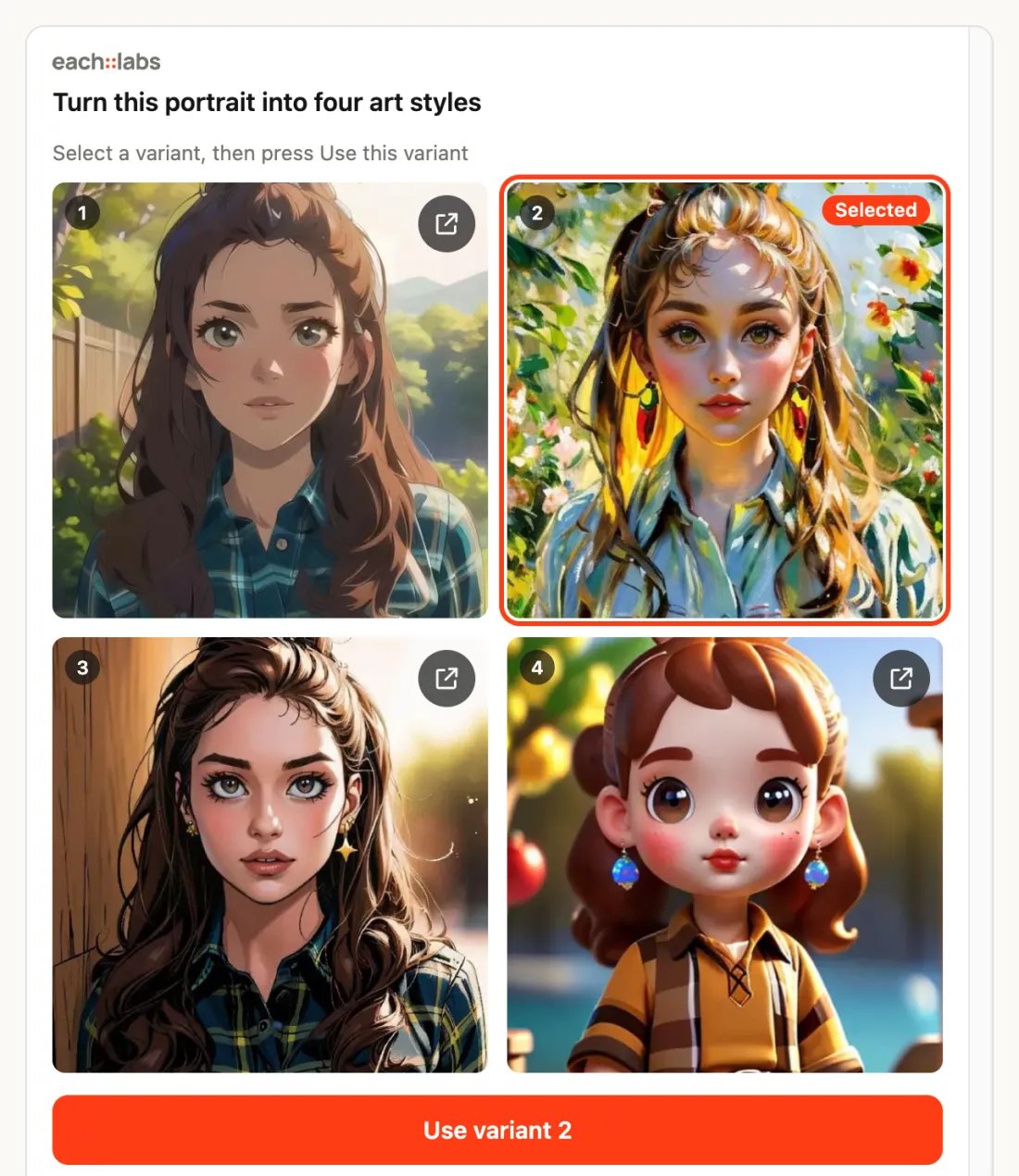
### Generate images and pick one right in your AI conversation
> Give me four variants of a fantasy trading card with a fire dragon. I want to pick one.
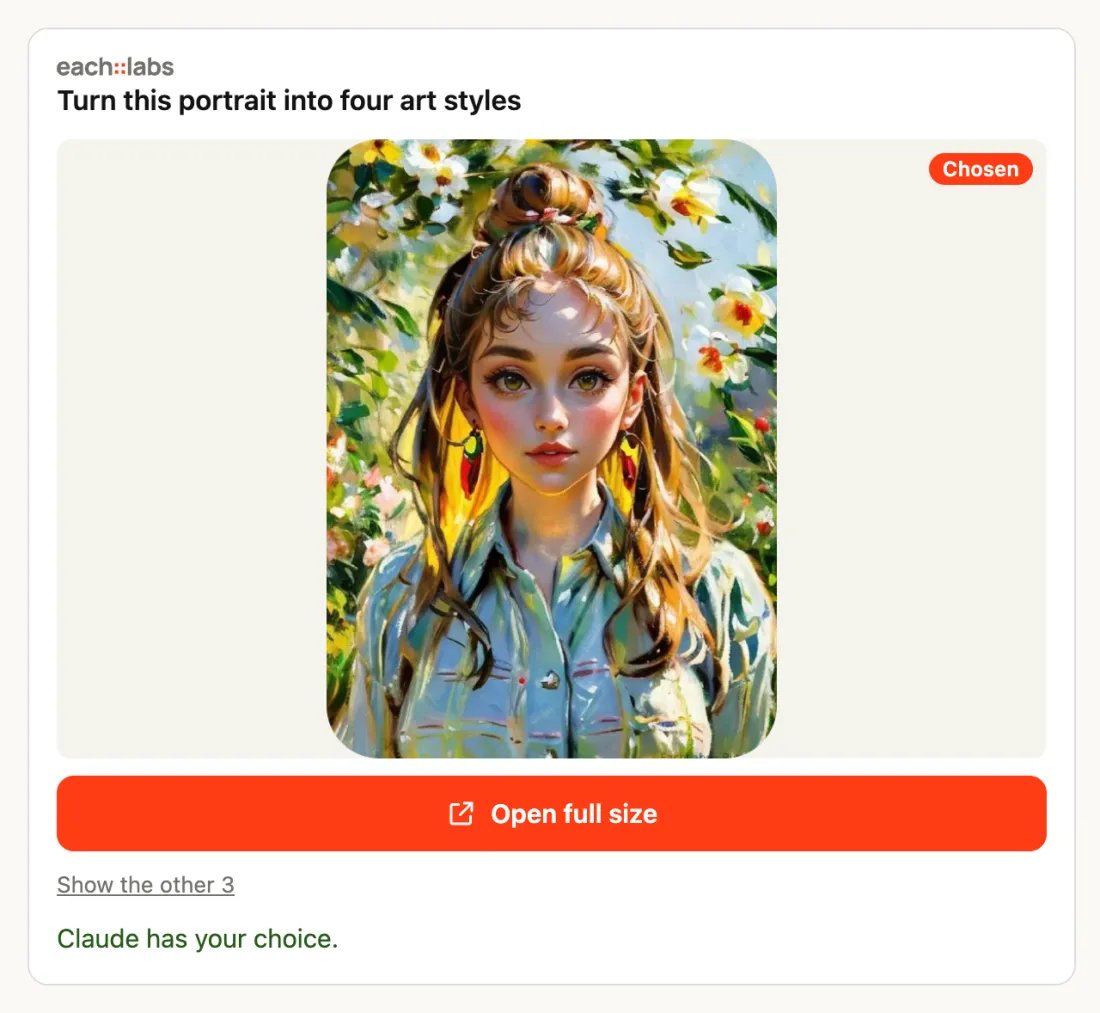
The results arrive together on one card. Select the one you like, as often as you like; the button under them then reads **Use variant 2**, or the number you selected. Press it and Claude continues with that image. The choice is final. One request makes up to 8 variants.
 ### Edit a photo and compare before and after
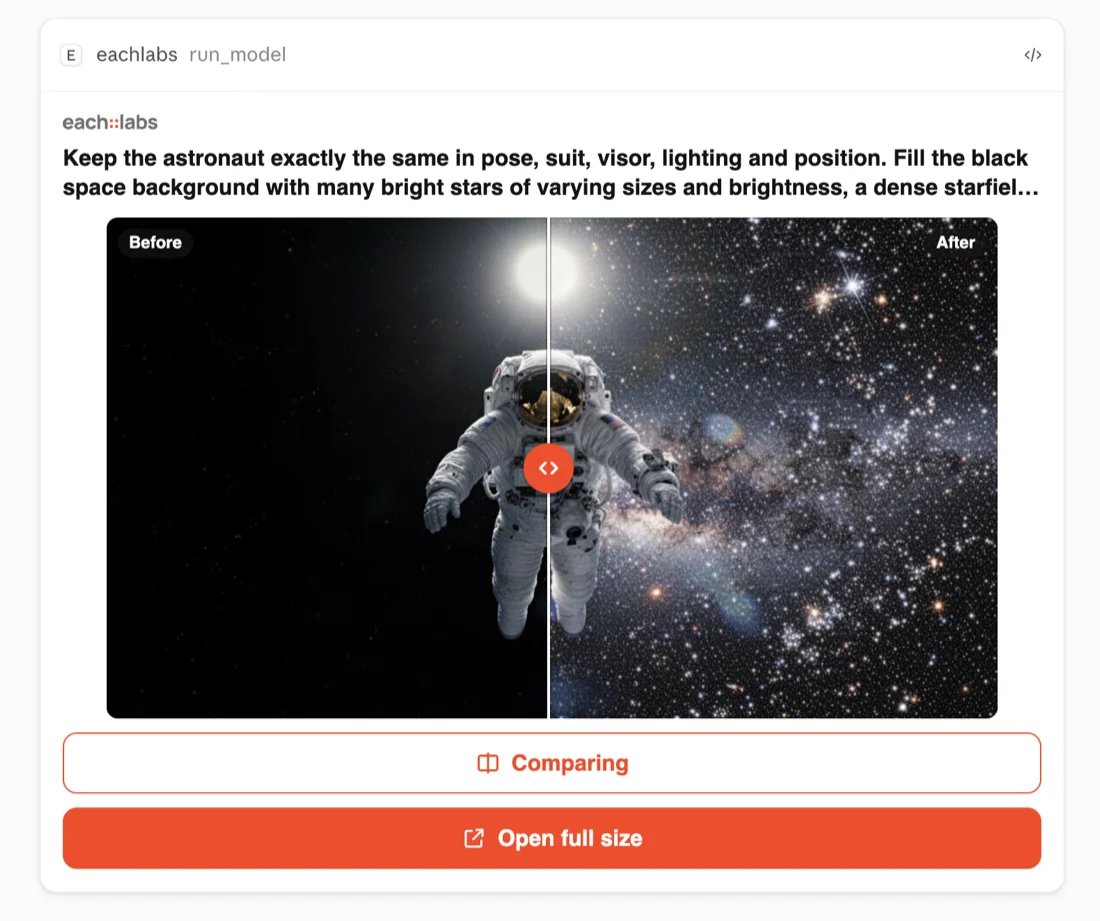
> Keep the astronaut exactly as it is and fill the black background with a dense, bright field of stars.
If you have not given the photo yet, Claude shows the [upload card](#give-a-file-as-input) first. The edited image comes back with a **Compare** button. Press it and drag the handle: the original is on the left, the result on the right.
### Edit a photo and compare before and after
> Keep the astronaut exactly as it is and fill the black background with a dense, bright field of stars.
If you have not given the photo yet, Claude shows the [upload card](#give-a-file-as-input) first. The edited image comes back with a **Compare** button. Press it and drag the handle: the original is on the left, the result on the right.
 ### Turn a dozen screenshots into one slideshow
> Make a slideshow video from my 12 app screenshots, 3 seconds each.
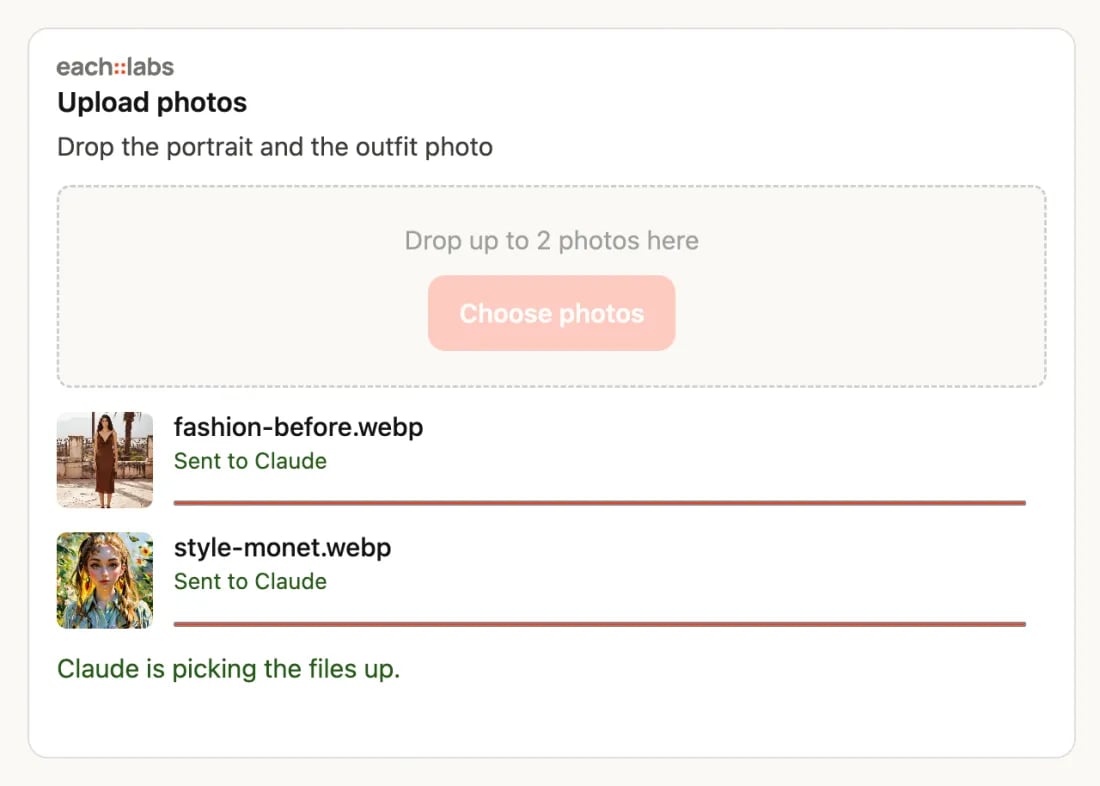
One upload card takes the whole set. Drop all twelve at once; they upload four at a time, each with a thumbnail and a progress bar. When every file is up, Claude picks them up and returns the video on a result card with a player and a download button.
### Turn a dozen screenshots into one slideshow
> Make a slideshow video from my 12 app screenshots, 3 seconds each.
One upload card takes the whole set. Drop all twelve at once; they upload four at a time, each with a thumbnail and a progress bar. When every file is up, Claude picks them up and returns the video on a result card with a player and a download button.
 ### Make music, then trim it
> Compose an upbeat lo-fi track, a little over a minute long.
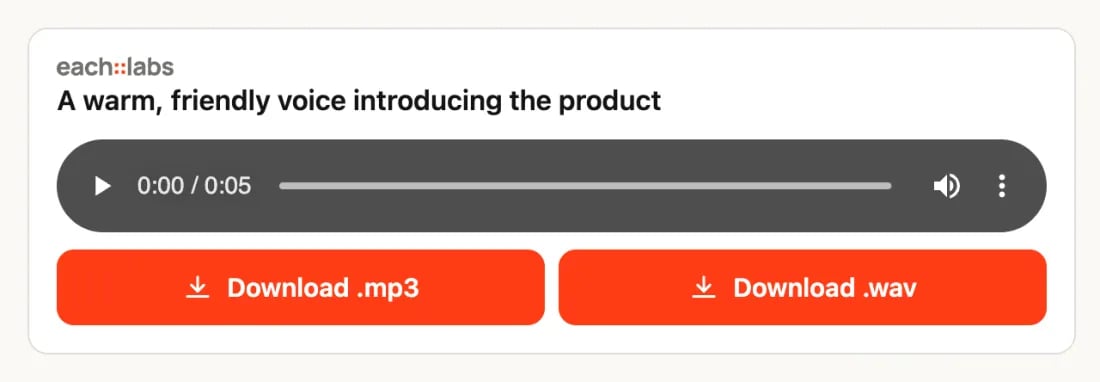
The track comes back with a player and one download button per format. Then:
> Cut it down to the part I like.
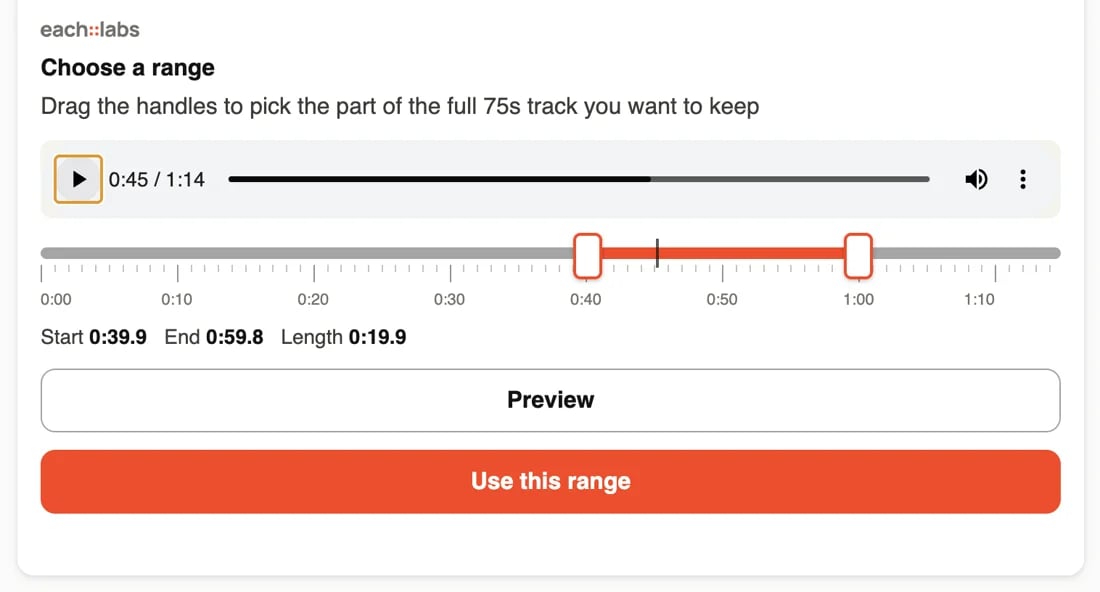
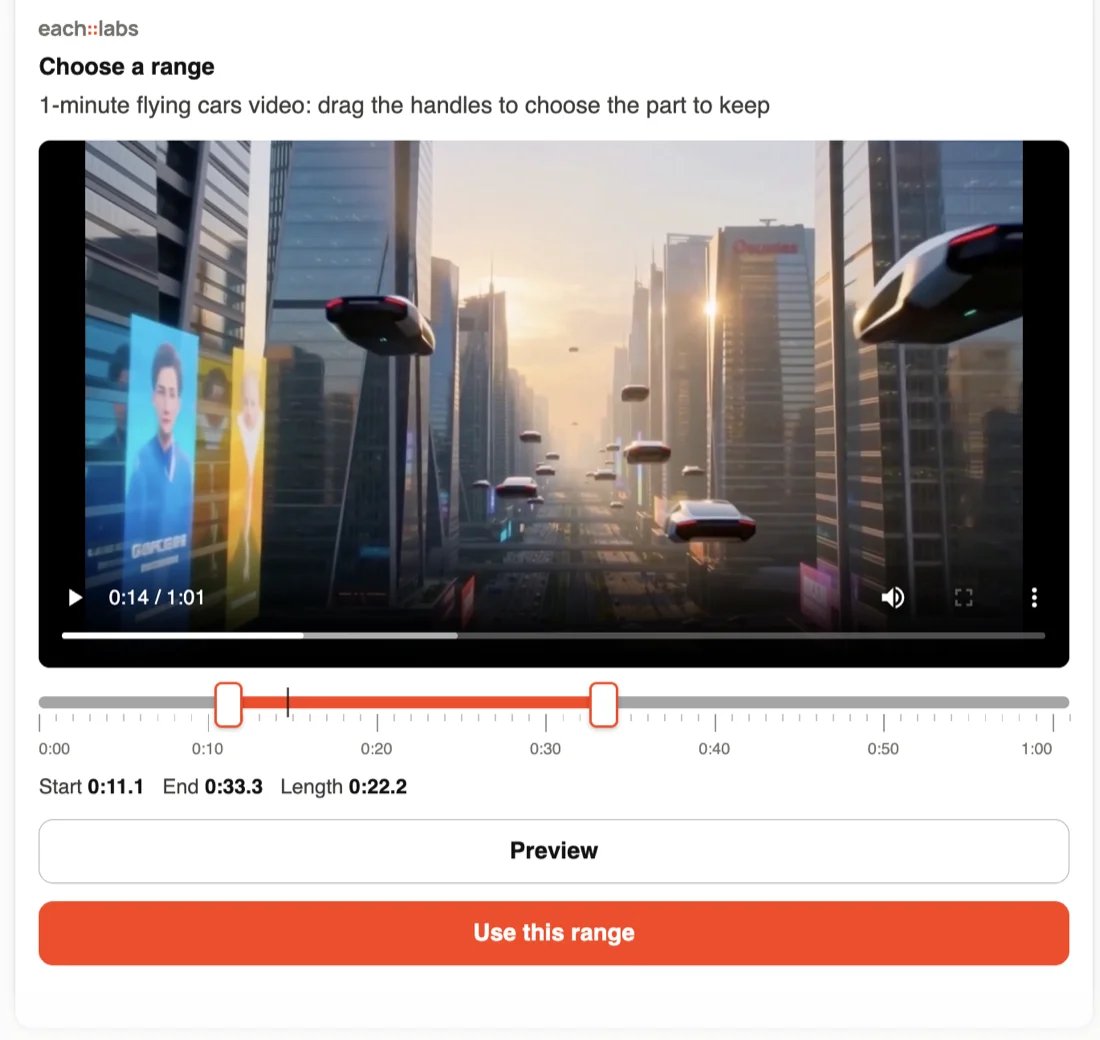
Claude shows the track on a timeline with two handles. Drag them, press **Preview** to listen, and press **Use this range**. When you give exact seconds instead, such as "keep 0:05 to 0:20", Claude trims without a card.
### Make music, then trim it
> Compose an upbeat lo-fi track, a little over a minute long.
The track comes back with a player and one download button per format. Then:
> Cut it down to the part I like.
Claude shows the track on a timeline with two handles. Drag them, press **Preview** to listen, and press **Use this range**. When you give exact seconds instead, such as "keep 0:05 to 0:20", Claude trims without a card.
 ### Make a video from a photo
> Turn this photo of a futuristic city into a one-minute video where the camera slowly pulls back over the skyline at sunset.
Claude asks for the photo on an upload card, runs a video model and shows the clip on a result card that plays in the conversation. A video often takes 5 to 10 minutes; Claude shows it as still running and checks again until it is done. See [When a tool says running](#when-a-tool-says-running).
### Make a video from a photo
> Turn this photo of a futuristic city into a one-minute video where the camera slowly pulls back over the skyline at sunset.
Claude asks for the photo on an upload card, runs a video model and shows the clip on a result card that plays in the conversation. A video often takes 5 to 10 minutes; Claude shows it as still running and checks again until it is done. See [When a tool says running](#when-a-tool-says-running).
 ### Adjust the settings before a run
> Restyle this portrait as a Monet oil painting. Let me adjust the settings first.
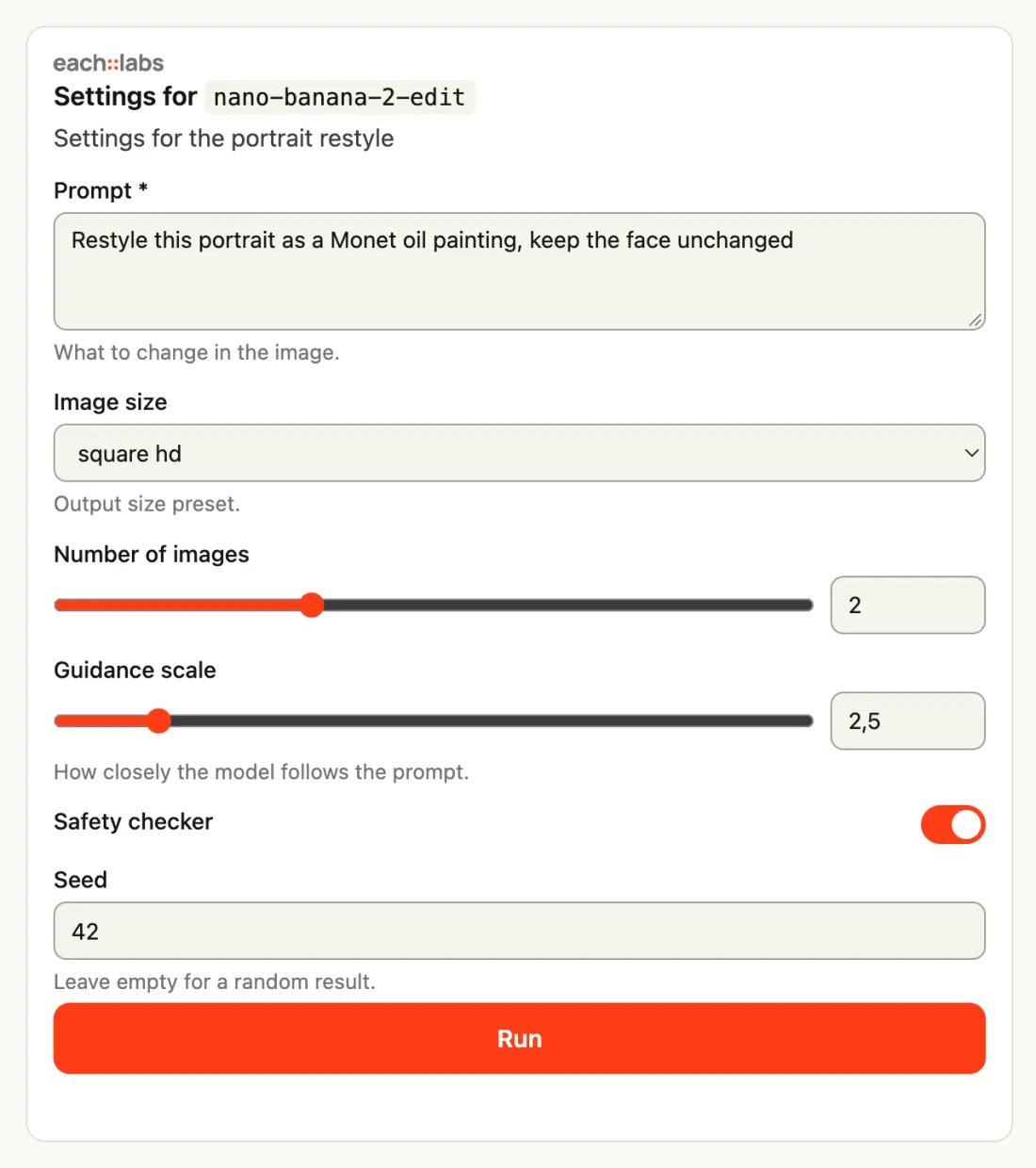
Claude shows the model's settings as a form: the prompt, size, number of images, seed and any other option the model takes. Change what you want and press **Run**. After the first run of a model in a conversation, Claude ends its reply with a short **Adjust generation settings** line naming a few of that model's settings; ask to change any of them and the form appears.
### Adjust the settings before a run
> Restyle this portrait as a Monet oil painting. Let me adjust the settings first.
Claude shows the model's settings as a form: the prompt, size, number of images, seed and any other option the model takes. Change what you want and press **Run**. After the first run of a model in a conversation, Claude ends its reply with a short **Adjust generation settings** line naming a few of that model's settings; ask to change any of them and the form appears.
 ### Run your organization's workflow
> Which workflows do we have? Run our product clip workflow with this tote bag photo.
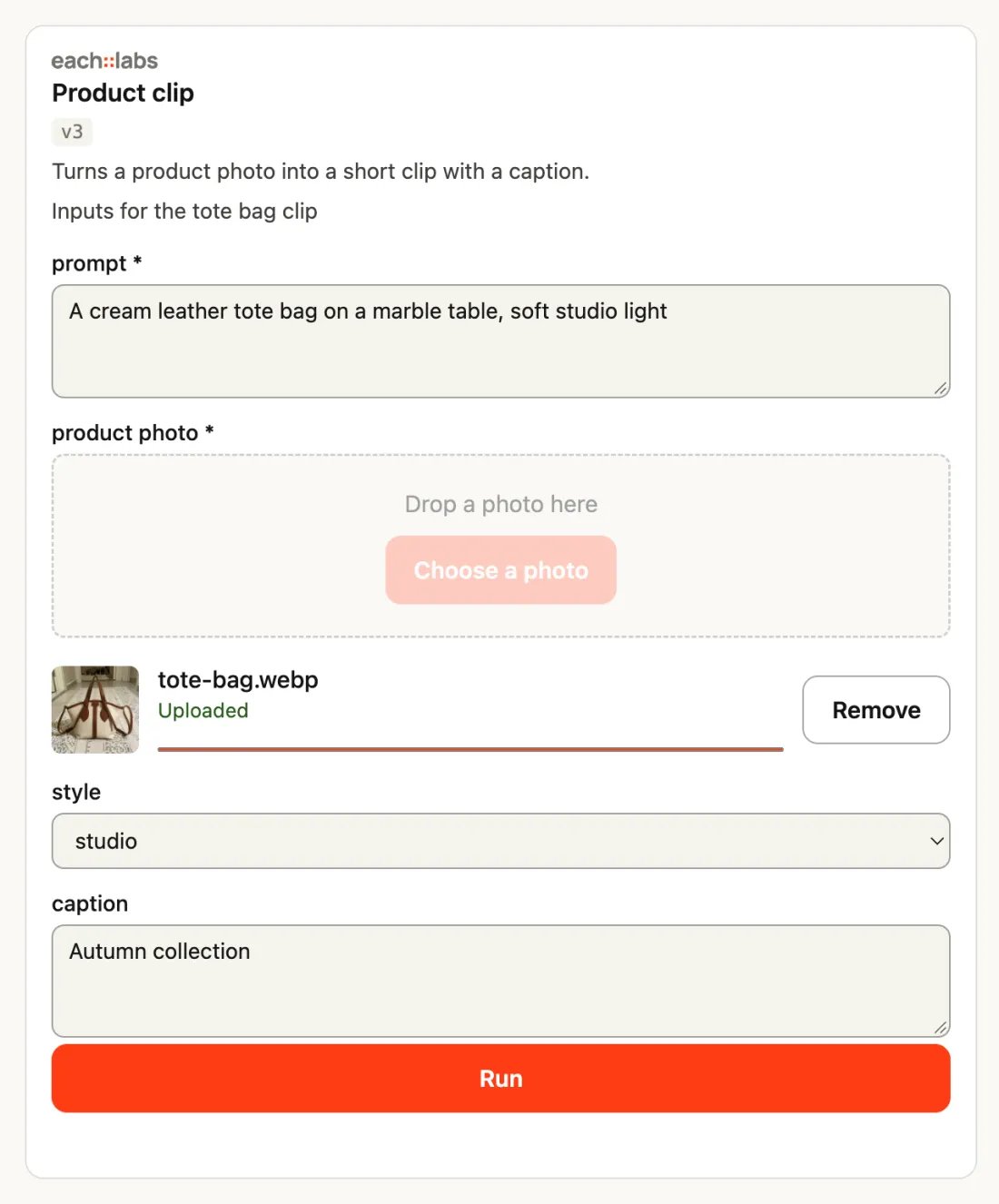
Claude lists the [workflows](/workflows/overview) your organization built in the dashboard. When a workflow needs inputs you have not given, Claude shows them as a form, with a file picker for each photo, video or audio input. Press **Run**; the outputs show together as a gallery.
### Run your organization's workflow
> Which workflows do we have? Run our product clip workflow with this tote bag photo.
Claude lists the [workflows](/workflows/overview) your organization built in the dashboard. When a workflow needs inputs you have not given, Claude shows them as a form, with a file picker for each photo, video or audio input. Press **Run**; the outputs show together as a gallery.
 ### Cut and crop media
> Trim this video for a story.
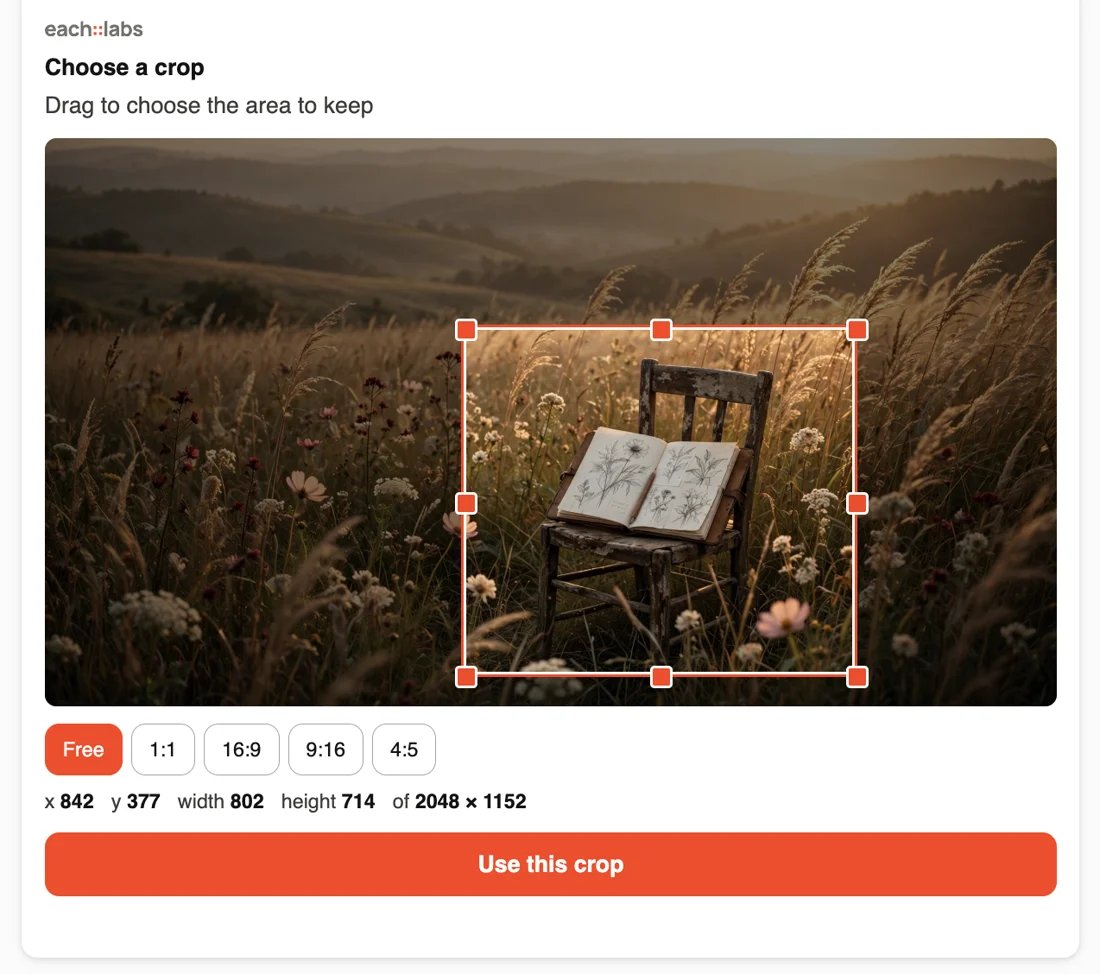
Claude shows the video with a timeline. Drag the two handles to the part you want to keep, check it with **Preview**, and press **Use this range**. To crop, ask "crop it to 9:16": Claude shows the first frame with a rectangle. Move and resize it, or lock it to 1:1, 16:9, 9:16 or 4:5, and press **Use this crop**. Exact numbers, such as "cut the first 10 seconds", skip the card.
### Cut and crop media
> Trim this video for a story.
Claude shows the video with a timeline. Drag the two handles to the part you want to keep, check it with **Preview**, and press **Use this range**. To crop, ask "crop it to 9:16": Claude shows the first frame with a rectangle. Move and resize it, or lock it to 1:1, 16:9, 9:16 or 4:5, and press **Use this crop**. Exact numbers, such as "cut the first 10 seconds", skip the card.
 ## Add the connector
Pick the tab for where you use Claude. On a Team or Enterprise plan, read [Team and Enterprise plans](#team-and-enterprise-plans) first: an Owner may already have added the connector for you.
The steps are the same in the browser and in the desktop app's chat. **Customize** is the page that holds your connectors.
Go to **Customize > Connectors**.
Click **Add custom connector**.
Enter `https://mcp.eachlabs.ai/mcp`. Leave the OAuth client ID and secret empty; each::labs sets them up for you.
Click **Add**, then **Connect**. The each::labs consent page opens; see [First sign-in](#first-sign-in).
On the Free plan you can add one custom connector.
Add the connector from your shell:
```bash theme={"dark"}
claude mcp add --transport http eachlabs https://mcp.eachlabs.ai/mcp
```
Then run `/mcp` inside Claude Code, select `eachlabs`, and sign in when prompted; see [First sign-in](#first-sign-in). The tools appear once the sign-in completes.
Changes to the cards come from the each::labs server. A card always shows its current version, with no update or restart on your side.
## Team and Enterprise plans
An Owner adds the connector once for the organization, and each member then connects it and signs in with their own each::labs account.
Each member's each::labs account must belong to the each::labs organization that should pay for the runs, and the member picks that organization at sign-in. A member who signs in with a personal account and organization is billed there instead.
Go to **Organization settings > Connectors**.
Select **Add**, then **Custom**. If Claude asks for the connector type, choose **Web**.
Enter `https://mcp.eachlabs.ai/mcp`. Leave the OAuth client ID and secret empty.
Click **Add**. The connector now appears under **Customize > Connectors** for members, with the **Custom** label.
Go to **Customize > Connectors**, find the each::labs connector with the **Custom** label and select **Connect**. The each::labs consent page opens; see [First sign-in](#first-sign-in).
## First sign-in
Connecting opens the each::labs consent page in a new browser tab.
1. If you are not signed in to the each::labs dashboard, the page sends you through [sign-in](https://www.eachlabs.ai/sign-in) and back to the consent page.
2. Choose the **Organization**. The page states: *Predictions will run and bill as \*. Every job you run from Claude is charged to this organization at the same prices as the API.
3. Review the permissions listed (the [scopes](/mcp-server#scopes)) and click **Approve**.
Claude stores the resulting token and refreshes it in the background while you use it. You sign in again after 30 days without use, or 90 days after you signed in, whichever comes first. The token never appears in the conversation. To bill a different organization, disconnect the connector under **Customize > Connectors** and connect again.
If the page fails with *organization has no runner credential*, open the [dashboard](https://www.eachlabs.ai) once as that organization, then connect again.
### Tool approvals
Before running a tool that creates something (a model run, a workflow run, a file upload), Claude asks you to allow it. **Always allow** remembers the answer for that tool. Tools that only read (checking a job, listing models or workflows) run without a prompt. The first time a card appears, Claude also asks whether to show the each::labs app; allow it.
You can turn the connector off for one conversation: click the **+** button in the chat and select **Connectors**, then turn each connector on or off for that conversation.
## Give a file as input
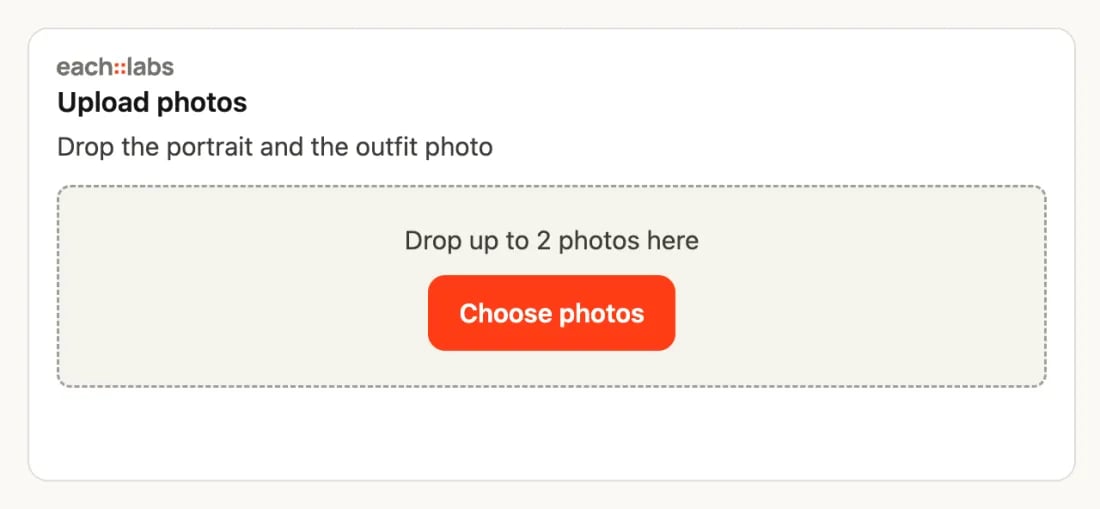
Many requests start from your own photo, video or audio file. Tool inputs are URLs, and a file attached with Claude's paperclip stays inside Claude: it cannot reach a connector tool. When a model needs a file, Claude shows the each::labs **upload card** instead. Put the file on the card, not on the paperclip.
| Step | What happens |
| - | - |
| 1 | You ask for the result you want: "turn this photo into a short clip". |
| 2 | Claude shows the upload card and waits for your files. |
| 3 | Drop the files on the card, or pick them with its button, such as **Choose a photo**. |
| 4 | The card uploads each file from your browser to each::labs storage and shows a thumbnail and progress. Nothing passes through Claude. |
| 5 | When the card has every file it asked for, it hands them to Claude by itself. If you upload fewer than it takes, press **Done, send to the chat**. |
| 6 | Claude receives the files' URLs and runs the model. |
## Add the connector
Pick the tab for where you use Claude. On a Team or Enterprise plan, read [Team and Enterprise plans](#team-and-enterprise-plans) first: an Owner may already have added the connector for you.
The steps are the same in the browser and in the desktop app's chat. **Customize** is the page that holds your connectors.
Go to **Customize > Connectors**.
Click **Add custom connector**.
Enter `https://mcp.eachlabs.ai/mcp`. Leave the OAuth client ID and secret empty; each::labs sets them up for you.
Click **Add**, then **Connect**. The each::labs consent page opens; see [First sign-in](#first-sign-in).
On the Free plan you can add one custom connector.
Add the connector from your shell:
```bash theme={"dark"}
claude mcp add --transport http eachlabs https://mcp.eachlabs.ai/mcp
```
Then run `/mcp` inside Claude Code, select `eachlabs`, and sign in when prompted; see [First sign-in](#first-sign-in). The tools appear once the sign-in completes.
Changes to the cards come from the each::labs server. A card always shows its current version, with no update or restart on your side.
## Team and Enterprise plans
An Owner adds the connector once for the organization, and each member then connects it and signs in with their own each::labs account.
Each member's each::labs account must belong to the each::labs organization that should pay for the runs, and the member picks that organization at sign-in. A member who signs in with a personal account and organization is billed there instead.
Go to **Organization settings > Connectors**.
Select **Add**, then **Custom**. If Claude asks for the connector type, choose **Web**.
Enter `https://mcp.eachlabs.ai/mcp`. Leave the OAuth client ID and secret empty.
Click **Add**. The connector now appears under **Customize > Connectors** for members, with the **Custom** label.
Go to **Customize > Connectors**, find the each::labs connector with the **Custom** label and select **Connect**. The each::labs consent page opens; see [First sign-in](#first-sign-in).
## First sign-in
Connecting opens the each::labs consent page in a new browser tab.
1. If you are not signed in to the each::labs dashboard, the page sends you through [sign-in](https://www.eachlabs.ai/sign-in) and back to the consent page.
2. Choose the **Organization**. The page states: *Predictions will run and bill as \*. Every job you run from Claude is charged to this organization at the same prices as the API.
3. Review the permissions listed (the [scopes](/mcp-server#scopes)) and click **Approve**.
Claude stores the resulting token and refreshes it in the background while you use it. You sign in again after 30 days without use, or 90 days after you signed in, whichever comes first. The token never appears in the conversation. To bill a different organization, disconnect the connector under **Customize > Connectors** and connect again.
If the page fails with *organization has no runner credential*, open the [dashboard](https://www.eachlabs.ai) once as that organization, then connect again.
### Tool approvals
Before running a tool that creates something (a model run, a workflow run, a file upload), Claude asks you to allow it. **Always allow** remembers the answer for that tool. Tools that only read (checking a job, listing models or workflows) run without a prompt. The first time a card appears, Claude also asks whether to show the each::labs app; allow it.
You can turn the connector off for one conversation: click the **+** button in the chat and select **Connectors**, then turn each connector on or off for that conversation.
## Give a file as input
Many requests start from your own photo, video or audio file. Tool inputs are URLs, and a file attached with Claude's paperclip stays inside Claude: it cannot reach a connector tool. When a model needs a file, Claude shows the each::labs **upload card** instead. Put the file on the card, not on the paperclip.
| Step | What happens |
| - | - |
| 1 | You ask for the result you want: "turn this photo into a short clip". |
| 2 | Claude shows the upload card and waits for your files. |
| 3 | Drop the files on the card, or pick them with its button, such as **Choose a photo**. |
| 4 | The card uploads each file from your browser to each::labs storage and shows a thumbnail and progress. Nothing passes through Claude. |
| 5 | When the card has every file it asked for, it hands them to Claude by itself. If you upload fewer than it takes, press **Done, send to the chat**. |
| 6 | Claude receives the files' URLs and runs the model. |
 If Claude does not pick the upload up on its own, the card shows **Send to the chat by message**. It writes the file list into your message box; press **Send** and Claude continues. Claude shows its standard caution notice above a message an app prepared.
| Limit | Value |
| - | - |
| File kinds | Image, video or audio, as the model needs |
| Files per card | One card takes a whole set: up to 50 files, or fewer when the chosen model accepts fewer. A card for one specific file, such as the face to use, takes exactly one |
| File size | 100 MB per file |
| Upload | Four files upload at a time; the rest wait their turn. Choosing more files than the card takes, or a file over 100 MB, is refused before anything uploads |
| Time to pick | Claude waits for the card up to 60 seconds at a time. After each wait it reads any new message from you, then waits again. If it stops waiting before you are done, tell Claude when the upload is finished |
| Storage | The file is kept for 180 days, or for your organization's own retention period, as with [Upload file](/storage/upload-file). Anyone who has the file's link can open it; links are long random addresses that are not listed anywhere |
| Already have a URL | Paste a public URL in the message instead; no card is needed |
| Claude Code | Does not show cards. Claude asks in the chat for a public link to the file instead |
## Cards in the conversation
Besides the upload card, these cards appear. [What you can ask](#what-you-can-ask) shows each one.
| You see | When |
| - | - |
| The result: the image, a video or audio player, and download buttons | Every run that produces media. A file in several formats has one button per format. A workflow's outputs show together as a gallery |
| Several results to choose from | You asked for several variants of one prompt, up to 8 in one request. Select one as often as you like, then press the button under them, which reads **Use variant** and the number you selected. Claude continues with that one, and the choice is final |
| A form with the model's settings and a **Run** button | You ask to adjust settings, or a run has options worth choosing first |
| A **Compare** button under an edited image or video | The result is an edit of a file you gave. Drag the handle to compare before and after |
| A timeline with two handles, or a rectangle on the first frame | You want to cut a clip or crop a frame and have not given exact numbers. Press **Use this range** or **Use this crop**. Trimmed audio keeps its format; FLAC comes back as mp4 |
| A workflow's inputs as a form, with a file picker for each photo, video or audio input | A workflow needs inputs you have not given |
A card that cannot load in your app says so and tells you what to give in the chat instead, such as a public file link or the start and end times.
A card you already used stays locked on your choice when you come back to the conversation later. To see a result again, ask Claude to show it; it shows the file on a card without running anything.
## When a tool says running
A tool waits about 20 seconds for its job. A job that takes longer, such as a long video or a multi-step workflow, shows as still running, and Claude checks again until the job is done, then shows the result. The job keeps running on each::labs the whole time. You do not need to ask; if Claude stops before the job is done, ask "is that job done?" and it checks again.
When you asked for several variants, Claude checks on all of them together, and they arrive on one card with the picker once every variant is done.
Claude can also look up your organization's recent runs, for example to pick up a run it started earlier after a brief connection interruption, and continue with it rather than starting a new one. That list shows only each run's id, model, status, time and result link.
Long videos can take 5 to 10 minutes. Claude keeps checking until yours is ready, and asks you before trying a different model.
You are billed once, when the job runs, not for checking. Details are under [Long jobs](/mcp-server#long-jobs).
Results are URLs to files on each::labs storage, kept as long as [uploads](#give-a-file-as-input). Download anything you want to keep longer. A data result, such as a transcript or an analysis, comes back as text without a card.
## Remove it
| What | Where |
| - | - |
| The connector | **Customize > Connectors**, open the connector's menu, select **Remove**. A Team or Enterprise Owner removes the organization's copy under **Organization settings > Connectors** |
| The connector in Claude Code | `claude mcp remove eachlabs` |
Policies: [Acceptable Use](/video/acceptable-use) · [Abuse & Takedown](/video/abuse-and-takedown) · [Billing & Limits](/video/billing-limits)
This documentation is built and hosted on [Mintlify](https://mintlify.com), a developer documentation platform.
If Claude does not pick the upload up on its own, the card shows **Send to the chat by message**. It writes the file list into your message box; press **Send** and Claude continues. Claude shows its standard caution notice above a message an app prepared.
| Limit | Value |
| - | - |
| File kinds | Image, video or audio, as the model needs |
| Files per card | One card takes a whole set: up to 50 files, or fewer when the chosen model accepts fewer. A card for one specific file, such as the face to use, takes exactly one |
| File size | 100 MB per file |
| Upload | Four files upload at a time; the rest wait their turn. Choosing more files than the card takes, or a file over 100 MB, is refused before anything uploads |
| Time to pick | Claude waits for the card up to 60 seconds at a time. After each wait it reads any new message from you, then waits again. If it stops waiting before you are done, tell Claude when the upload is finished |
| Storage | The file is kept for 180 days, or for your organization's own retention period, as with [Upload file](/storage/upload-file). Anyone who has the file's link can open it; links are long random addresses that are not listed anywhere |
| Already have a URL | Paste a public URL in the message instead; no card is needed |
| Claude Code | Does not show cards. Claude asks in the chat for a public link to the file instead |
## Cards in the conversation
Besides the upload card, these cards appear. [What you can ask](#what-you-can-ask) shows each one.
| You see | When |
| - | - |
| The result: the image, a video or audio player, and download buttons | Every run that produces media. A file in several formats has one button per format. A workflow's outputs show together as a gallery |
| Several results to choose from | You asked for several variants of one prompt, up to 8 in one request. Select one as often as you like, then press the button under them, which reads **Use variant** and the number you selected. Claude continues with that one, and the choice is final |
| A form with the model's settings and a **Run** button | You ask to adjust settings, or a run has options worth choosing first |
| A **Compare** button under an edited image or video | The result is an edit of a file you gave. Drag the handle to compare before and after |
| A timeline with two handles, or a rectangle on the first frame | You want to cut a clip or crop a frame and have not given exact numbers. Press **Use this range** or **Use this crop**. Trimmed audio keeps its format; FLAC comes back as mp4 |
| A workflow's inputs as a form, with a file picker for each photo, video or audio input | A workflow needs inputs you have not given |
A card that cannot load in your app says so and tells you what to give in the chat instead, such as a public file link or the start and end times.
A card you already used stays locked on your choice when you come back to the conversation later. To see a result again, ask Claude to show it; it shows the file on a card without running anything.
## When a tool says running
A tool waits about 20 seconds for its job. A job that takes longer, such as a long video or a multi-step workflow, shows as still running, and Claude checks again until the job is done, then shows the result. The job keeps running on each::labs the whole time. You do not need to ask; if Claude stops before the job is done, ask "is that job done?" and it checks again.
When you asked for several variants, Claude checks on all of them together, and they arrive on one card with the picker once every variant is done.
Claude can also look up your organization's recent runs, for example to pick up a run it started earlier after a brief connection interruption, and continue with it rather than starting a new one. That list shows only each run's id, model, status, time and result link.
Long videos can take 5 to 10 minutes. Claude keeps checking until yours is ready, and asks you before trying a different model.
You are billed once, when the job runs, not for checking. Details are under [Long jobs](/mcp-server#long-jobs).
Results are URLs to files on each::labs storage, kept as long as [uploads](#give-a-file-as-input). Download anything you want to keep longer. A data result, such as a transcript or an analysis, comes back as text without a card.
## Remove it
| What | Where |
| - | - |
| The connector | **Customize > Connectors**, open the connector's menu, select **Remove**. A Team or Enterprise Owner removes the organization's copy under **Organization settings > Connectors** |
| The connector in Claude Code | `claude mcp remove eachlabs` |
Policies: [Acceptable Use](/video/acceptable-use) · [Abuse & Takedown](/video/abuse-and-takedown) · [Billing & Limits](/video/billing-limits)
This documentation is built and hosted on [Mintlify](https://mintlify.com), a developer documentation platform.